
Custom Order Management System in Cin7: Purchase Orders and Customer Orders Done Right
How to set up purchase order management, sales order management and the workflows that connect them in Cin7 Core.
Every business runs its orders a little differently, and that's true on both sides.
Start with purchase orders. A manager might sign off on large purchases before they reach a supplier. Overseas suppliers may need a different layout from local ones, and monthly restocks may go to the same supplier every time.
Then there are customer orders. Your best customers might have their own paperwork, terms and delivery notes. A wholesale account may need a different invoice from a retail one, and some customers expect an update the moment their order ships.
A custom order management system gives each side its own rules and lets your software follow your process. If you're new to Cin7, the platform can take you most of the way there on its own. This guide covers purchase order management first, then sales order management, then the workflows that connect them, so you know what to set up and when an expert can take it further.
What Is an Order Management System?
An order management system tracks every order from the moment it's created until it's complete. Two types of orders matter most:
- Purchase orders (POs): orders you send to suppliers to buy stock.
- Customer orders: orders your customers send to you, also called sales orders.
A custom order management system is set up around how your business actually works. It carries your approval steps, your document layouts, your extra fields and your rules for what happens next.
There are two ways to get one. Building software from scratch gives you total control, but it's a long project. Starting with a platform like Cin7 and shaping it to fit is usually faster, and you can add custom integrations or apps as you grow. For a business new to Cin7, and for anyone comparing an order management system for small business, this is the smart place to start.
Signs You're Ready to Customize Your Order Flow
Growing businesses usually reach a point where a tailored setup pays off. You're likely there if a few of these apply.
On the purchase order side:
- You send similar purchase orders to the same suppliers every month.
- Larger purchases call for a manager's sign-off before they go out.
- Different suppliers work with different layouts or terms, and you want every PO to carry your brand.
On the customer order side:
- Your customer orders carry extra details, like delivery windows or a customer's own PO number.
- You'd like customers to hear from you automatically when an order is ready.
- Wholesale and retail customers each need their own invoices and paperwork.
If three or more apply, a customized order flow will give your team time back every week.
Order Management Customization in Cin7: What You Can Change
Cin7 Core is built to be shaped around your business. Here's a quick map of what you can adjust and where to find it.
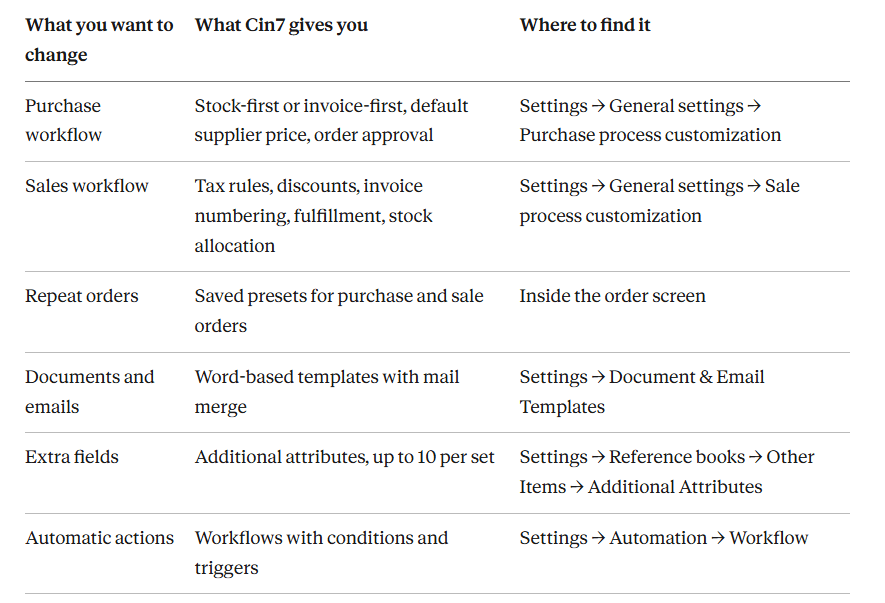
Menu names can shift between Cin7 updates, so check Cin7's help center if a label looks slightly different. Now let's go deeper on each order type.
Purchase Order Management in Cin7: 5 Changes That Matter
Good purchase order management decides what you buy, from whom and at what price. Getting it right protects your cash and keeps stock levels where you want them. Here are the five changes that matter most.
1. Choose how your purchase process runs
The purchase process settings set the defaults for every new PO. New purchases can run stock first (goods arrive, then the bill) or invoice first (the bill comes before the goods). You can also choose between the fixed supplier price and the latest supplier price.
You can even make every new purchase an Advanced purchase, so one order can hold several bills and stock receipts. Set these once, and every new order starts with the right choices already made.
2. Add a purchase order approval workflow
Turn on Enable Order Approval in the same settings area to build a simple purchase order approval workflow. Every authorized purchase order then shows Approve and Reject buttons. Approved orders move to the next step, and rejected orders become read-only, so every order on file has a clear decision behind it.
Approval works for simple, service and advanced purchases. You also choose which team members can approve.
3. Save presets for repeat orders
Send similar orders to the same suppliers every month? Save the order as a preset. A preset stores supplier, accounting, shipping and billing details, plus your products and quantities. Next time, pick the preset and the fields fill in for you.
4. Build your own purchase order template
Cin7 Core uses Word files with mail merge for its documents and emails. Download a default purchase order template, edit it in Word and upload it as a new template.
You can keep more than one, such as one for overseas suppliers and another for local ones. You can also add columns to the order lines, like product brand. Pair it with an email template so every PO goes out with the right subject line and message.
5. Add the fields your team needs
Additional attributes are custom fields. Add up to 10 per attribute set, then make that set the default for purchase orders. The fields appear on the order's Logs & Attributes tab. Popular examples include shipping method, container number and requested delivery date.
Sales Order Management: Custom Customer Orders in Cin7
Strong sales order management comes down to two things: capturing the right details and following the right steps for each customer. Cin7 gives you several ways to do both, which makes customer order management feel built for your business.
Set the rules once in the sale process settings
The sale process settings cover default tax rules, how discounts apply, whether fulfillment is manual or automatic, and when invoice numbers are assigned. You can also make stock allocation optional. With that on, stock is set aside when picking begins, which suits orders that ship over a longer period.
Capture customer-specific details
Use additional attributes on both customers and sales. Think delivery instructions, a customer's own PO number or the account manager in charge. Cin7 can copy customer attribute values onto new sale orders automatically, as long as the customer and sale attribute sets match exactly. Your team sees the right details the moment an order opens.
Send documents that match each customer
Like purchase orders, sales quotes, invoices and shipping labels can each have several templates. Name them by customer type, such as wholesale or retail, and pick the right one when you print or email. Sale order presets work the same way as purchase presets, so repeat customers are quick to enter.
Turn low stock into purchase orders
When you authorize a sale for an item with limited stock, Cin7 Core offers a backorder. New stock is ordered from your supplier, and the sale completes once it arrives. This is where backorder management brings your customer orders and purchase orders together. (The product needs a supplier attached for this to work.)
Purchase Order Automation: Connect Both Order Types with Workflows
Workflow automation is where your custom order management system starts to run itself. In Cin7 Core, you build workflows from parameters, conditions and triggers, for sales, purchases, leads and opportunities.
Examples from Cin7's own help center include:
- Sending sales quotes to customers automatically
- Approving purchase orders for specific products
- Making sure a key field always gets updated
- Emailing customers when an order is authorized to ship
Workflows need the Automation module. Once they're running, purchase order automation and customer updates take care of the routine steps, and your team can focus on the orders that need a personal touch.
Example: B2B Order Management for a Wholesale Team
Here's how the pieces can fit together for b2b order management. Picture a wholesale distributor that buys from overseas suppliers and sells to retail stores:
- Purchase orders go through approval before they reach a supplier.
- Monthly restock orders use a saved preset.
- The purchase order template includes a brand column, and overseas suppliers get their own layout.
- Each customer has a "delivery window" field that copies onto every new sale order.
- A workflow emails the store when its order is authorized to ship.
- When stock runs low, a backorder creates the purchase order automatically.
No custom code. Just Cin7's own settings, working together.
Your 5-Step Plan to Get Started
- Map how orders move today. Write down each step from request to delivery, for both purchase orders and customer orders.
- Mark the checkpoints. Note where a person approves, checks or adds information.
- Set your defaults. Configure the purchase and sale process settings to match.
- Build your templates, fields and presets. Shape each document and order screen around your business.
- Add workflows and test with real orders. Run real scenarios before go-live, so launch day feels routine.
If you're new to Cin7, the best time to build these rules is right at the start. The sooner your order rules live inside Cin7, the sooner every order follows the same clear path.
Taking Your Order Management System Further with SymConverge
Cin7's settings and workflows cover a lot of ground. Some businesses want their orders to go further still: approval rules that change by supplier or order value, sales orders that flow straight to a 3PL or online store, or purchase orders that reach suppliers through their own systems.
As a Cin7 implementation partner, SymConverge builds those next steps on top of your setup. For order management, that means:
- Mapping your purchase and customer order flows, then configuring Cin7 to match
- Designing approval rules and workflows around your thresholds and suppliers
- Building purchase order and invoice templates for each supplier and customer type
- Connecting orders to your 3PL, ecommerce store or supplier systems through API integrations
- Running real test orders with your team before go-live
Ready for an order process built around the way you work? Book a consultation call with us and we'll map your next steps together.
Frequently Asked Questions
Related reading

Customize Your Inventory Management and CRM: A Complete Guide
A simple guide to the role a CRM plays in your business, how it works alongside Cin7, and how to customize both around the way your team sells.
Piyush Chaudhary·30 October 2026·5 min read

Cin7 Xero Integration: Setup Guide, Sync Settings & Common Fixes
Connect Cin7 Core with Xero to bring inventory operations and financial accounting into a more coordinated workflow. Learn how to set up the integration, map accounts and tax rules, configure synchronization, and resolve common data-sync issues.
Piyush Chaudhary·14 October 2026·11 min read

QuickBooks to Cin7 Migration: A Step-by-Step Data Cutover Guide
Prepare your data, map it to Cin7, validate opening stock and balances, and cut over with confidence.
Piyush Chaudhary·12 October 2026·12 min read